Ask in plain language
In chat, with Voice or through the AI you already use. Your Hand works in the workspace while you follow along.
Explore Voice → Hands
Sign in
Get started with Hands
Your Hand works in its own workspace. With the terminal and the code editor you work right in it: the same folder, the same files, on your laptop or your phone. Just pick the way you like to work.
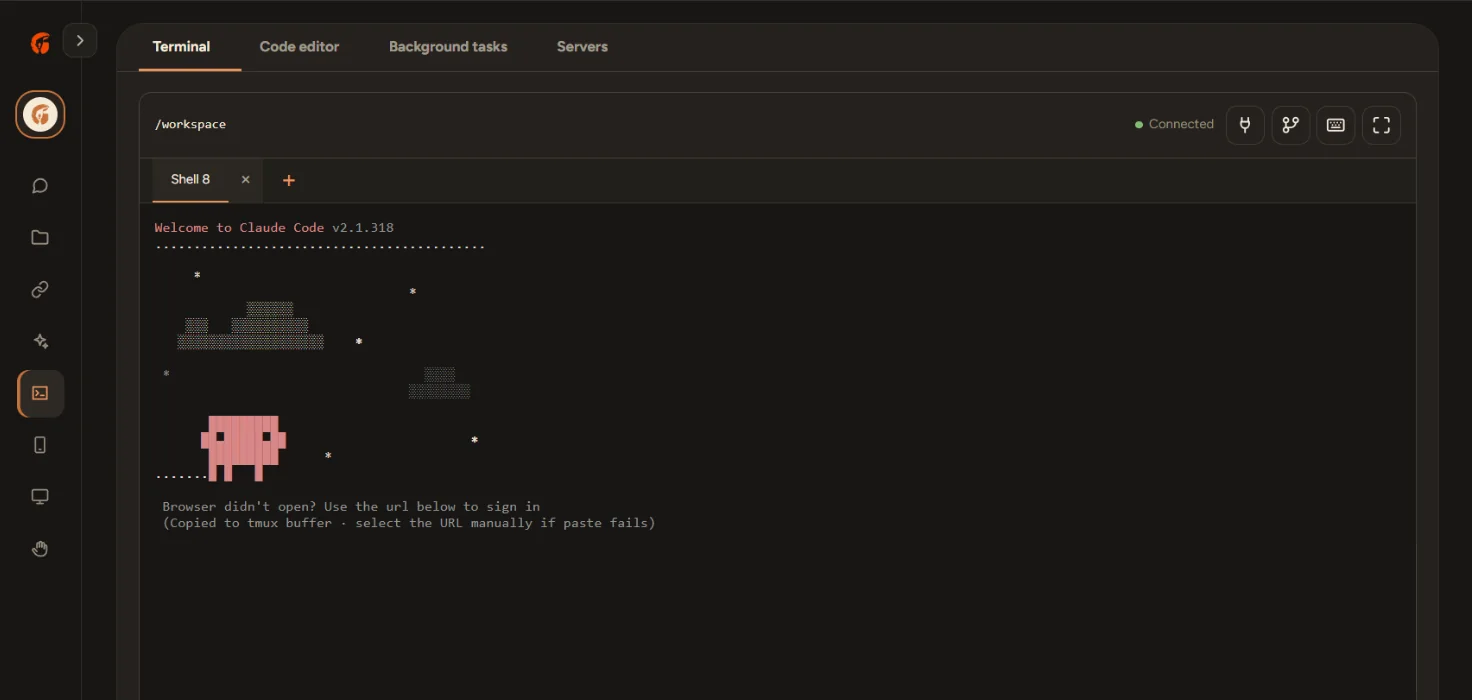
Your Hand, the terminal, the code editor and Files all work in the same folder. Open what your Hand made straight in the editor. What you change in the terminal is ready for its next task.
In chat, with Voice or through the AI you already use. Your Hand works in the workspace while you follow along.
Explore Voice →Run commands, start tools like Claude Code and follow what is running.
Go to the terminal ↓Open files, search your project and change code in a familiar editor.
Go to the code editor ↓Give your Hand a project in its workspace and ask it to install dependencies, run a command or investigate an error. You can open the same code and terminal output to guide the next step.
“Install the dependencies, run the project and find out why the app won't start.”
From a simple script to a development project, the terminal and code editor use the same folder as your Hand.
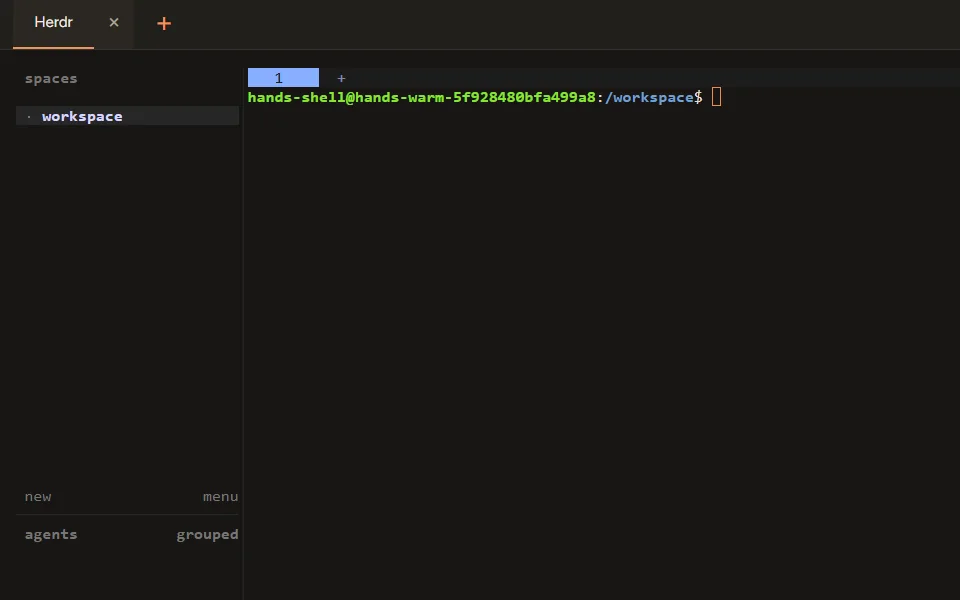
See Hands Computer too →A real shell in your Hand’s workspace. Run commands and start command-line tools such as Claude Code, without installing anything on your own computer.
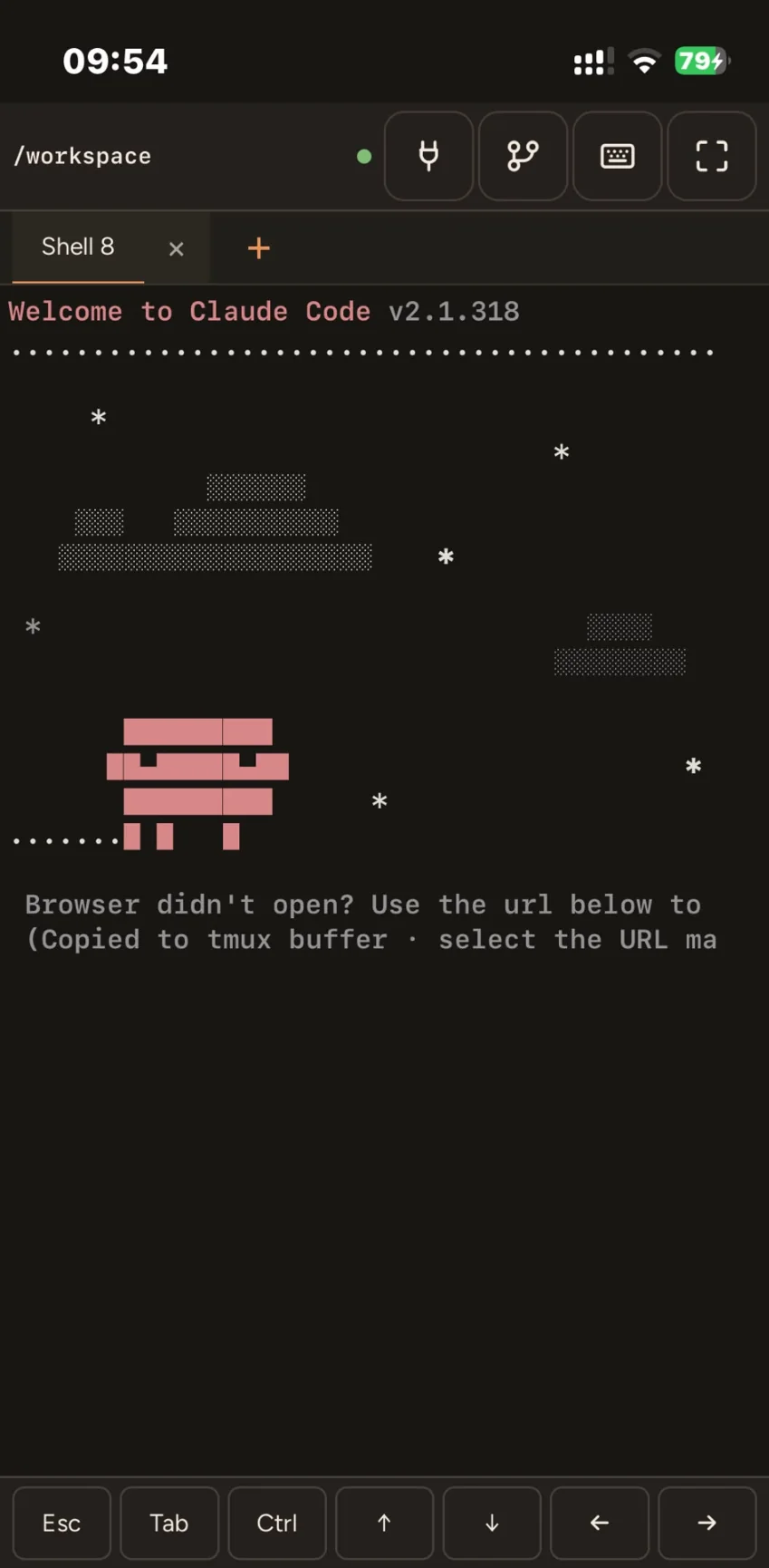
On your phone the terminal gets an extra key bar with Esc, Tab, Ctrl and arrow keys, plus an input field for your command. So you can drive Claude Code with your thumb.

The code editor is OpenVSCode: a version of VS Code that runs on your Hand and opens in your browser. If you already use VS Code, you will feel at home right away.
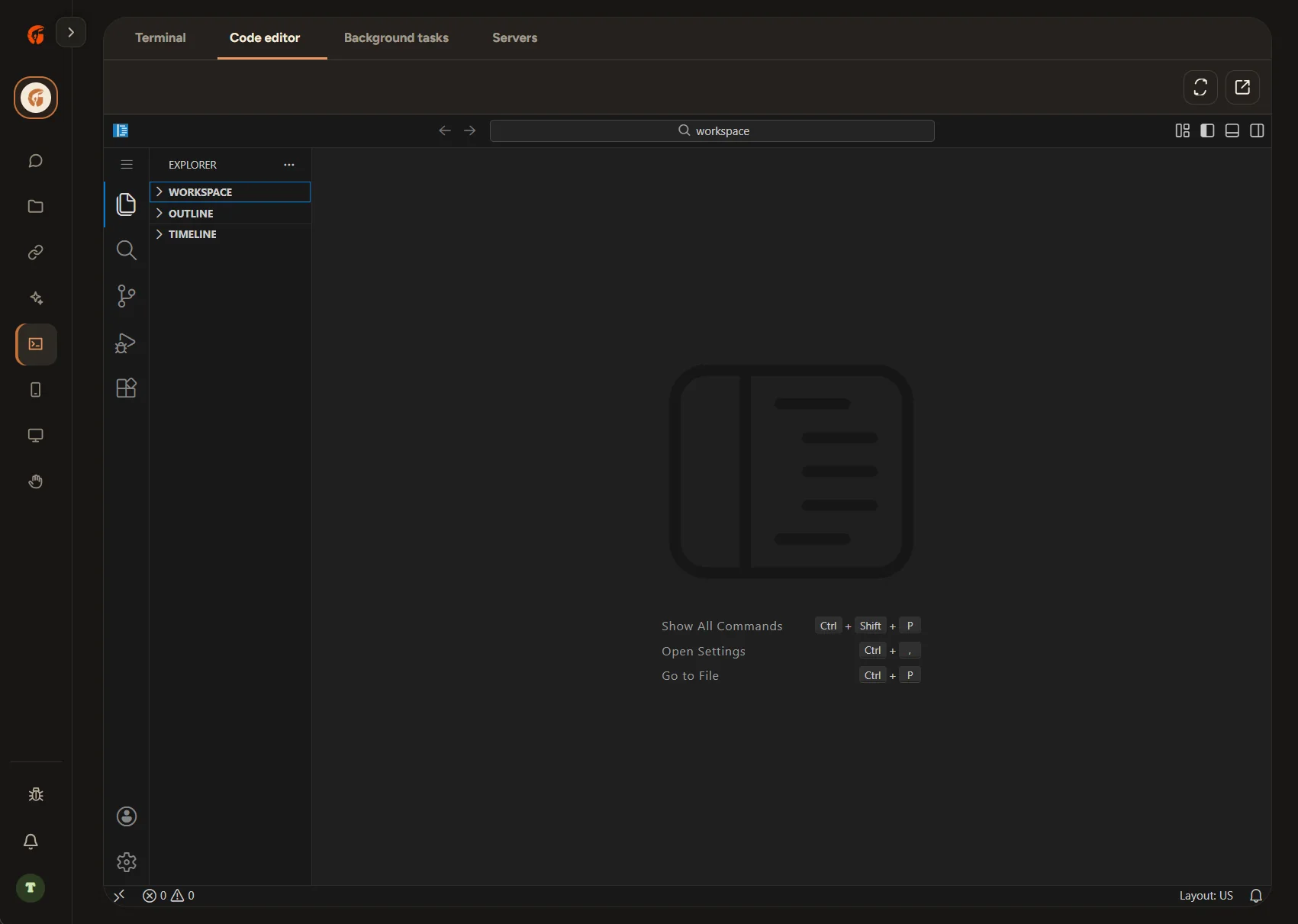
Open Environments in your console and choose the terminal or the code editor. On your laptop or your phone.