Hands
NL
Sign in Get started with Hands

You say it.
Your Hand clicks.

On any website: your Hand opens the page in its own browser, searches, clicks and fills in forms. You watch along and take the last step yourself. Even on sites that have no connection.

  • Watch live
  • You take over when needed
  • Works without a connection

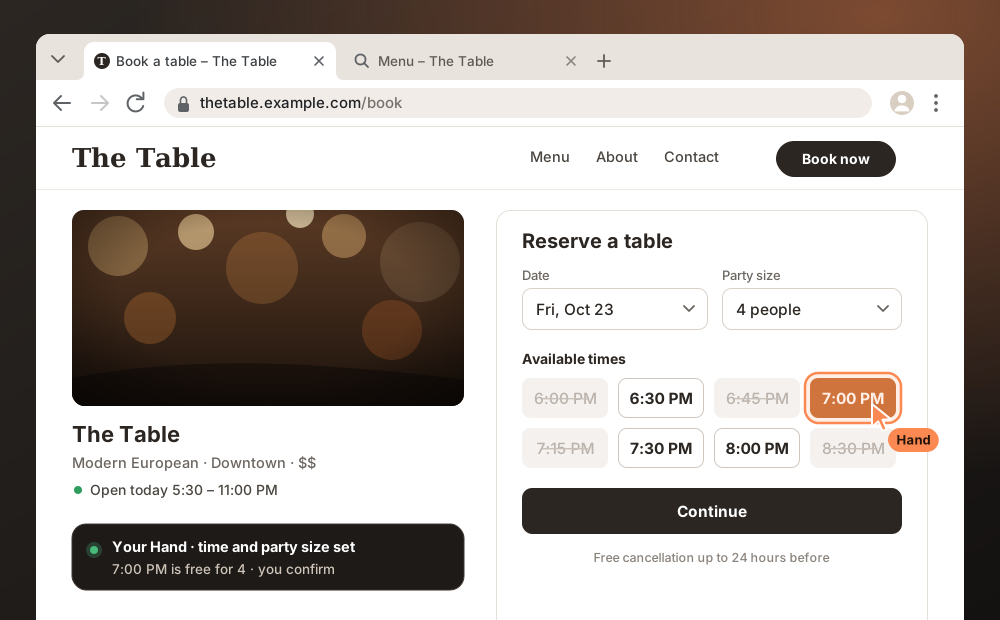
Example of Browserview: you ask your Hand to book a table for four at The Table on Friday at 7 PM. Your Hand opens The Table’s booking page, picks 7:00 PM, fills in the form and leaves the final confirmation to you.

Rebuilt view · sample data, not live availability
Just say the word

From dinner plans to a broken API. Your Hand gets to work.

Tell it what you need. Your Hand finds, clicks and works through it.

Rebuilt browser view: on a booking page your Hand picks 7:00 PM for four people; you confirm. Sample data, not live availability. Rebuilt · sample data
Dinner plans

Book a restaurant table

Opens the booking page of the restaurant you name, picks the time and fills in the party size.

“Book a table for four at The Table on Friday at 7 PM.”
You complete final confirmation when needed.
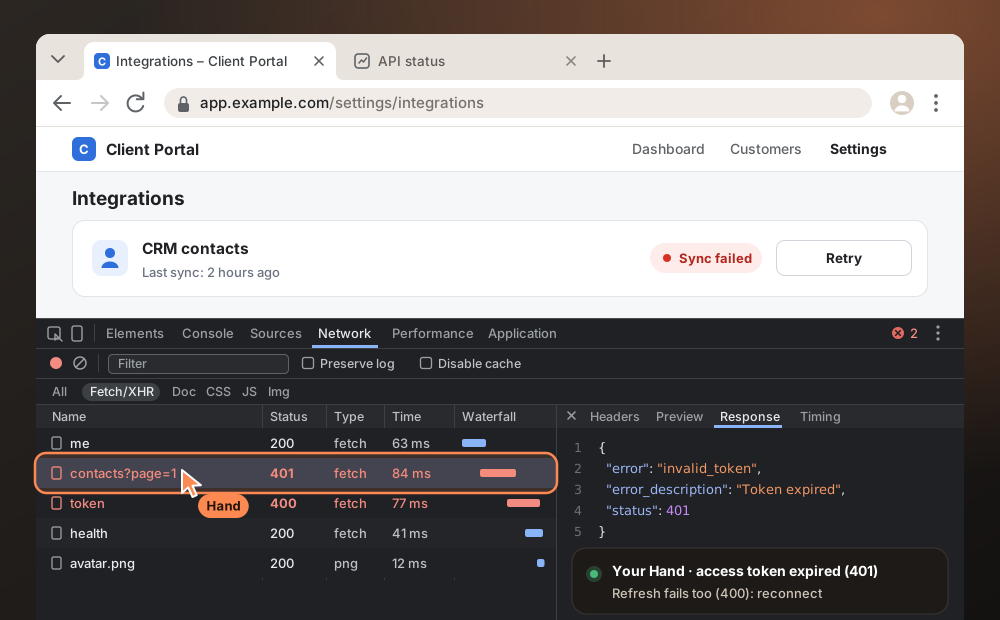
Rebuilt browser view: in the DevTools Network panel your Hand finds a 401 on the contacts request and a failed token refresh (400). Sample data. Rebuilt · sample data
API troubleshooting

Investigate an API failure

Checks visible errors and network requests, helping pinpoint where the connection fails.

“Why did my API connection stop working?”
Server logs or source code require separate access.
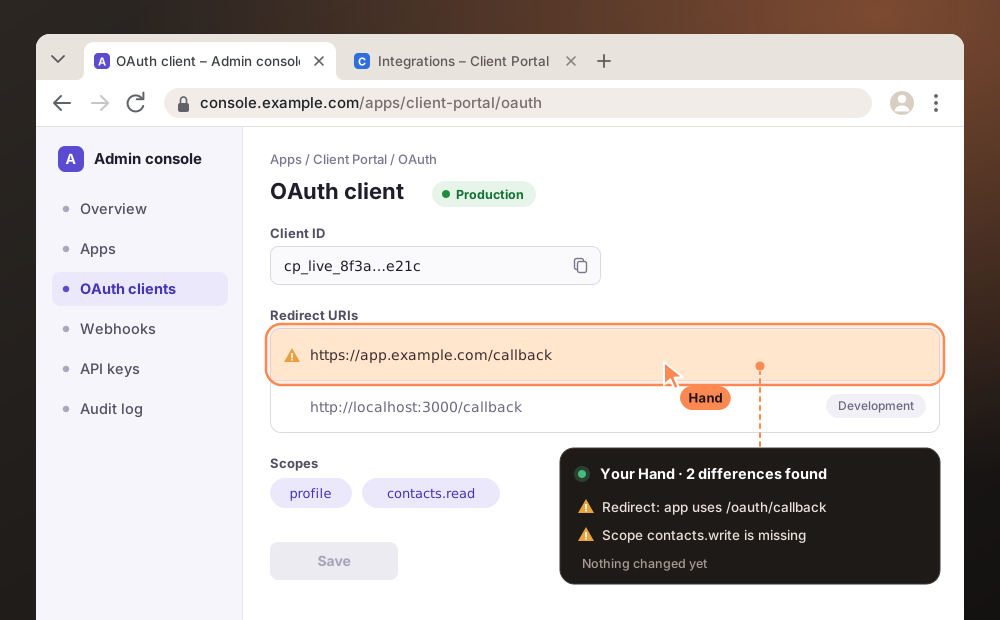
Rebuilt browser view: your Hand compares the OAuth settings in an admin console with what the app uses and finds a mismatched redirect URI and a missing scope. Sample data. Rebuilt · sample data
Admin console

Review settings

Finds OAuth and connector settings, comparing scopes, endpoints and redirect URLs.

“Check my OAuth redirect and permissions.”
Changes require the right access.
Not a simulation

A real browser. You watch along and take over.

Your Hand works in a real Chromium browser in its own environment. You follow every step live and step in whenever you want.

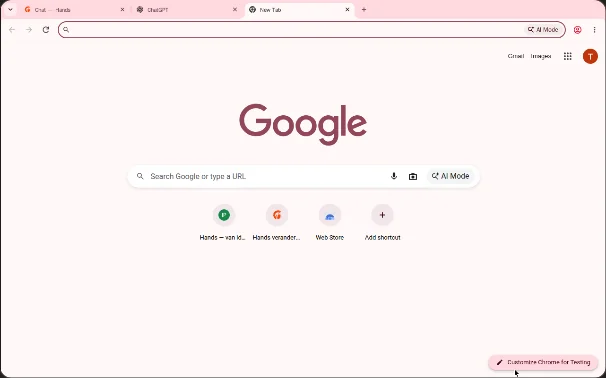
Real capture of a Chromium browser showing the Google start page, as seen in ChatGPT Browserview.
Real Chromium capture · surrounding controls simplified for the website
  • Watch liveSee every page and every click your Hand makes, in the same browser.
  • Take controlNeed to sign in, enter a code or solve a CAPTCHA? Take over the controls for a moment. Your Hand waits.
  • Give backThen hand the controls back and let your Hand carry on.
  • ExpandView the browser large, or next to your conversation in a split view.

The browser runs in your Hand’s environment, not automatically in your own Chrome. Available actions depend on enabled tools and permissions.

Browserview in practice

What can your Hand help you achieve in Browserview?

Search, fill, compare and test. Let your Hand do the legwork.

01 · Navigate

Operate websites

Your Hand searches, clicks and fills in forms. For final submissions, ask your Hand to stop so you can review and confirm first.

02 · Research

Gather and compare information

Compare products, sources and documentation. Get the highlights with source links.

03 · Investigate

Investigate problems

Reproduce website errors and gather clues for a focused fix.

04 · Improve

Preview and update websites

Test your website in the browser. With separate source-file or repository access, your Hand can prepare changes too.

05 · Collaborate

Work together in the same browser

Watch live. For two-factor authentication or a CAPTCHA, take over briefly when needed.

A practical example

Tell your Hand what to solve, not where to click.

Give your Hand an outcome and work together to see what happens on the real website.

Your instruction to your Hand
“Hand, open my website, find out why the sign-in button is not working and try to fix the problem.”
  1. Opens your sitein its own browser
  2. Reproduces itand sees what goes wrong
  3. Finds the causein errors and network requests
  4. Prepares a fixwith access to your project files
  5. Tests againin the browser

Your Hand can open the site, try to reproduce the issue and investigate the behavior in the browser. If the project files or repository are also accessible, it can prepare a change and test the result again in the browser. For a personal sign-in step, you can temporarily take control.

Voice + Browser

Voice and Browser: hand in glove.

They are two separate features, but together they are at their strongest. You call your Hand and say what you want to get done. While you talk, it opens the website in its own browser and does the clicking.

  1. You talkSay what you want to get done, the way you would tell a colleague.
  2. Your Hand clicksIt opens the website in its own browser, searches and fills in.
  3. You hear what is readySigning in and the final confirmation are yours.
Explore Voice →

Example of Voice and Browser together: during a call you ask your Hand to book a table for four at The Table on Friday at 7 PM. Your Hand fills in the booking in its own browser and asks you for the final confirmation.

Rebuilt view · sample data, not live availability
For everyone

A helping Hand on every website.

That combination makes the web easier for people who see poorly, find clicking hard or struggle with reading. That is a lot of people: in the Netherlands, 3 million find reading, writing or arithmetic hard and 350,000 are partially sighted or blind.

Signing in or entering a code is something you do yourself, or with someone you trust.

  • Low vision or blindYour Hand reads the page and tells you what it says.
  • Limited movementYour Hand clicks and types; you only give the final confirmation.
  • Reading or writing is hardAsk in your own words and get a short, clear answer.
How it works

Tell your Hand what you need. It gets to work.

No need to explain every click.

Ask for an outcome

For example: “Book a table for four at The Table on Friday at 7 PM.”

Your Hand does the work

It opens pages, finds information and completes steps in its own Chromium browser.

See the progress

Watch the results live. Take over briefly if needed, then hand the browser back.

Good to know

You decide what your Hand can access.

Keep exploring

Let your Hand do the web legwork.

Give it the goal. Your Hand prepares the work in its browser.