
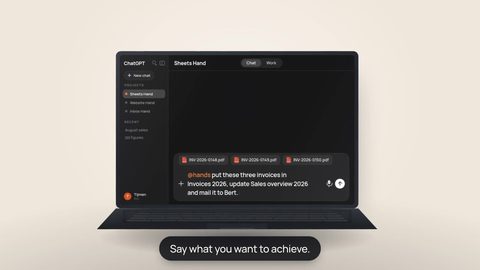
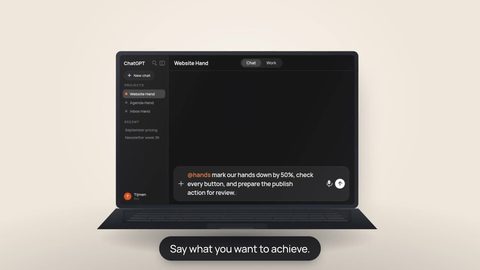
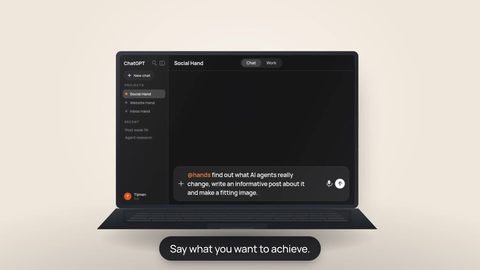


Add your Hand to your AI
You do this once so the AI you already use can work securely with your Hand. In the Hands dashboard, click the link icon next to the Hand you want to add. Its Hand details window contains the technical address details and access key used below.
You add your own Hand to your AI yourself. ChatGPT, Claude, and Perplexity warn you that they have not reviewed this external connection. That warning is expected and explained below. Adding it is deliberately your action, so the AI does not decide for itself which external tools it may use.

ChatGPT
Watch the short film first. Then keep the steps below beside you as a compact reference while you add your Hand.
What you need A ChatGPT account or workspace that shows the option to add a custom MCP server under Plug-ins. Availability and allowed actions can vary by plan, workspace, role and region; organization policy may restrict who can add one.
The steps beside the video
You do not need to memorize every screen. These are only the actions and fields that matter.
-
Open Plug-ins
Open Plug-ins in ChatGPT. If you do not see an option to add a custom MCP server, your current account or workspace does not expose that capability yet.
-
Add your Hand as a custom MCP server
Choose + and create a custom MCP server using your Hand's name. Keep the connection on Server URL, paste the connector URL from Hand details and select OAuth.
Leave client ID and client secret empty and do not paste the access key here. Your Hand registers ChatGPT itself.
-
Authorize and scan the tools
Only accept ChatGPT's warning about an unreviewed server when you deliberately added this Hand. Then choose Scan Tools and Sign in with [your Hand's name].
On the Hands authorization page, paste the access key from the same Hand details window and choose Authorize.
Treat the access key like a password. Never paste it into a chat, email or screenshot. If it has been exposed, stop using it and replace it.
Only continue once ChatGPT actually shows your Hand's tools. If the list stays empty, use Refresh, authorize again and start a new conversation.
-
Enable your Hand in the conversation
In a new chat, open the plug-in or tool picker and select your Hand. Mention it by name when you want to make sure ChatGPT uses it.

Claude
Watch the short film first. Then keep the steps below beside you as a compact reference while you add your Hand.
What you need Any Claude plan, including free. A free account can connect one custom connector and therefore one Hand. Team and Enterprise workspaces may require an Owner to add it.
The steps beside the video
Use this list mainly to verify the URL, authorization and permission settings.
-
Open Connectors
Go to Customize → Connectors. In Team or Enterprise, an Owner may need to do this through Organization settings → Connectors.
-
Add a custom connector
Use your Hand's name and paste the connector URL from Hand details as the Remote MCP server URL. Leave the OAuth fields under Advanced settings empty and choose Add.
-
Connect and authorize
Open the new connector, choose Connect and, if shown, Sign in with [your Hand's name]. On the Hands authorization page, paste only the access key from Hand details and choose Authorize.
Treat the access key like a password. The connector URL belongs in Claude; the access key belongs only on the Hands authorization page.
-
Choose tool permissions
Then decide what Claude may do without an extra prompt. Our recommended starting point is read-only tools on Always allow, and write or delete actions on Needs approval.
-
Enable your Hand in the conversation
Use the + button at the lower left of a chat, choose Connectors and enable your Hand. To change the URL later, remove the connector and add it again.

Perplexity
Watch the short film first. Then keep the steps below beside you as a compact reference while you add your Hand.
What you need Your connector URL and access key from Hands, plus a Perplexity account where Custom connectors are available. Perplexity currently offers this capability on supported plans such as Pro, Max and Enterprise; an organization admin may still control who can add one.
The steps beside the video
The key distinction is that you are adding a custom MCP connector, not your own API credentials.
-
Open Custom connectors
Go to Customize → Connectors and choose + Add custom connector. Do not choose Connect your own API.
-
Enter your Hand's details
Use your Hand's name and paste the connector URL from Hand details as the MCP server URL. Leave Advanced alone, confirm that you understand the risks of a custom connector and choose Add.
-
Authorize with your access key
Open the connector. On the Hands authorization page, paste the access key from the same Hand details window and choose Authorize.
Treat the access key like a password. Do not paste it into a chat, email or screenshot. The connector URL and access key intentionally belong in two different places.
-
Add your Hand to the context
Registering and using the connector are separate actions. In the project or context where you need your Hand, choose + Add connector and select it. Mention your Hand by name in the prompt afterwards.
Any other client
What you need The same two things as above: the connector URL and the access key from your Hand's Hand details. Anything that speaks MCP over HTTP can use them.
A client with a form asks for the URL and sends you to the authorization page afterwards. A client configured from a file takes this shape:
{
  "mcpServers": {
    "hands": {
      "type": "http",
      "url": "https://<your-connector-url>"
    }
  }
}
From a command line that speaks remote MCP, the same thing in one line:
claude mcp add --transport http hands https://<your-connector-url>Both then open your Hand's own authorization page, which is where the access key goes — the same step as in the guides above.
If it will not connect
No custom MCP option in ChatGPT. Your current account or workspace may not expose custom MCP servers, or an organization policy may block them. Check the Plug-ins screen first; changing plan names in Hands will not unlock that capability.
The URL opens a login page that is not ours. That is the sandbox platform's own sign-in, and it means the machine behind that URL is gone. Check your Hands dashboard, and tell us if it still says your Hand is ready.
It connects but the AI never uses it. Name it explicitly in your prompt, and say what not to use: "Use Mila for this, not browsing." None of these assistants reliably choose a custom tool on their own.
Still stuck? Email us with the name you gave your Hand. That is enough to find it.