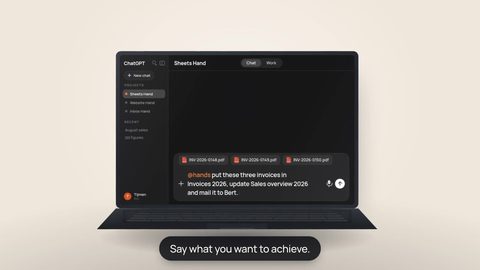
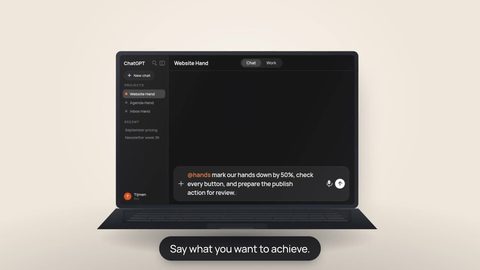
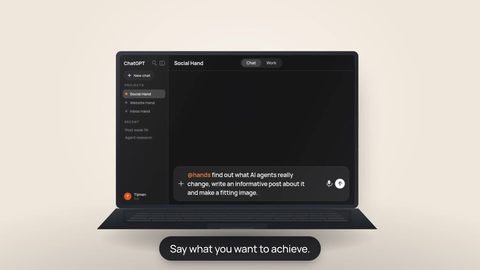
You decide what Hands may do on its own and when it needs your approval first.
01
Connect
02
Set rules
Connect GitHub first to unlock these rules.
03
Approve
This is an interactive demo: no real connection or action takes place. GitHub is an example only. This is not a statement that the GitHub Plugin is publicly available today.
Connections
Connect your Hand to the tools you already use.
Choose from the available connections, or add your own MCP connector with a URL. Your Hand can then work with the services you choose. Some third-party services may charge separately.
We are already grateful for your interest in Hands. If you would like to give us an extra boost, you help us keep putting time and attention into improving Hands and the experience around it.
What Hands does, what a Hand is, and how you stay in control.
What is Hands, exactly?
Hands gives the AI you already use a digital coworker with its own isolated computer. That coworker can work with the apps and files you choose, within the boundaries you set.
In Hands, each digital coworker is called a Hand. A chatbot mainly gives you an answer; a Hand gets its own workspace so it can also prepare or finish the work.
Behind the scenes, each Hand has its own isolated workspace, files, and access rules. That keeps work and access separated from your other Hands.
Is Hands itself an AI model?
No. You keep using the AI you already know, such as ChatGPT, Claude, or Perplexity. Hands gives that AI a digital coworker with its own isolated workspace, so it can work with the apps and files you choose within the rules you set.
Do I need experience with AI?
No. You do not need to be a developer or a prompt expert. Describe what you want done the way you would explain it to a coworker, then choose step by step which apps your Hand may use for that task.
Does my Hand belong to one AI provider?
No. You can add the same Hand to different supported AI services. Hands currently guides you through adding it to ChatGPT, Claude, and Perplexity.
The provider experience and available account plans differ. Adding the same Hand elsewhere does not make every provider interface or feature identical.
What stays the same when I switch AI?
Your Hand’s identity, its own workspace and files, the MCP connections you added, and result destinations stay with the Hand.
Your chat history and provider-specific settings do not automatically move between AI providers.
What can my Hand see?
Only its own workspace plus the services you deliberately connect. Your Hand does not work on your laptop. For a remote MCP connection, the provider account, API key, token or headers you supply determine what the provider allows.
How do permissions work for Plugins and Connectors?
When you connect a Plugin, you approve its access to your account with the service. For supported actions, Hands also shows which settings are available: Blocked, Ask every time, Allowed, or Automatic. These settings apply to this Hand; they do not change the access granted by the service.
For an MCP Connector, the available tools and permissions depend on the server and the account or key you connect. Plugin settings do not automatically apply to MCP servers. Some MCP servers support their own settings per tool.
Which AI plan do I need?
Your AI client needs to support a remote or custom MCP server over HTTP. Availability can depend on the AI provider’s current plan, workspace policy and administrator settings, so Hands does not hard-code a provider subscription tier here.
Use the current connection guide and the controls shown by your AI provider when you connect your Hand.
Where does my data physically live?
Your Hand’s isolated computer runs at Fly.io. Fly.io automatically chooses where that environment runs; Hands cannot currently pin it to a specific country or to the EU.
The storage behind the workspace is provided through Tigris, which Fly.io lists as a sub-processor in the United States. We therefore do not promise that your data stays inside the EU.
Your Hand sleeps when there is nothing to do. That avoids unnecessary active use. Its workspace, files, and settings stay saved. When you make another request, it becomes active again and can continue where it left off.
What does it cost?
Your first Hand has a one-time 7-day free trial without a payment card. It ends automatically and never turns into a paid subscription by itself.
Five qualified referrals can unlock one additional 7-day free period once. If the fifth referral qualifies after the base trial has ended, the same Hand can be reactivated once for those extra 7 days while you are not on a paid plan.
Current base prices are €9.99 for one Hand, €14.99 for two and €19.99 for three, excluding VAT. Stripe shows the exact tax-inclusive total before confirmation. While a paid plan is active, access follows that plan rather than the free period. Deleting a Hand does not change or cancel your selected plan.
Paid subscriptions and plan changes use Stripe's hosted checkout and customer portal. If Stripe is unavailable, no plan or paid capacity is changed.
How does payment work?
For a paid plan, or to use two or three Hands, open Stripe from Hands, add a payment method and confirm the plan. The free trial and referral extension need no payment card.
We receive only the subscription identifiers, status and payment events needed to run your plan.
What happens when the trial ends, or when I cancel?
The free trial expires by itself, with nothing to cancel and no automatic charge. Hands sends one warning during the final 24 hours before your current free-access period ends. If you earn the referral extension before then, the warning follows the extended end time. Without paid access or an unused referral extension at that deadline, access to the Hand is blocked and it pauses. See the trial and referral conditions.
Cancel a paid plan and access continues through the paid period; part-used months are not refunded. After a failed renewal, Stripe retries during a 7-day grace period before the Hand is paused. Data in your Hand’s workspace is not automatically deleted.
We do not currently delete paused Hands on a fixed timer or create a billing checkpoint automatically. Delete an individual Hand from its dashboard card. Use Account to export your account data or permanently delete the full account.
Can I get my data out, or delete everything?
You can permanently delete each individual Hand from its dashboard card; that immediately removes its workspace, files, and restore points. Your selected Stripe capacity is managed separately from Account. From there you can download a portable JSON export or permanently delete the full account yourself. Full deletion requires a recent sign-in and your exact email address.